RIPPLEFX + APPLE MUSIC · IPHONE & IPAD

Make Apple Music sound more like you.

Apple Music has built-in EQ presets, but you may want finer control. With RippleFX selected as the audio output, adjust individual frequencies, add controlled bass and customize the sound for your headphones.

Custom 8 & 16-band EQBass intensityHeadphone AutoEQReverb & spatial effects

7 days of full access. Then 10 minutes free every day. No automatic subscription.

Download on the App Store

Requires iOS 27 / iPadOS 27 or later. RippleFX is an independent app, not affiliated with the named streaming service.
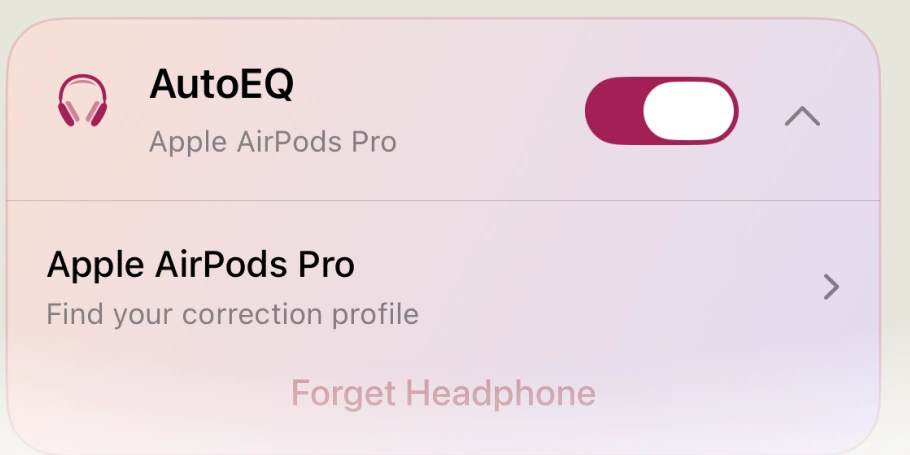
Actual RippleFX AutoEQ panel showing headphone-specific tuning for Apple AirPods Pro
KNOW YOUR OPTIONS

Apple Music EQ presets versus custom EQ in RippleFX

On iPhone, Apple Music provides EQ preset choices through the Settings app. RippleFX adds individual frequency controls and further audio effects when Apple Music playback is routed through the app.

BUILT INTO YOUR MUSIC APP

Apple Music EQ settings

On iPhone, open Settings → Apps → Music → EQ to select an Apple Music EQ preset. You can also adjust Sound Check in Music settings.

  • Quick preset-based sound choices
  • Managed from iPhone Settings
  • Useful if you want a simple sound change
WITH RIPPLEFX

What RippleFX adds

Choose RippleFX as the available audio output to customize the listening experience in greater detail.

  • Adjust individual frequencies with 8-band and 16-band graphic EQ
  • Use adjustable Bass Boost with four modes
  • Choose headphone AutoEQ profiles and explore Spatial Surround, Reverb and Pitch

Reference: Apple’s iPhone EQ settings guide. Menu options can change with app updates.

AUDIO OUTPUT SETUP

How to use RippleFX with Apple Music

RippleFX does not automatically alter every app’s sound. First, select RippleFX as the audio output.

  1. 01

    Play music in Apple Music

    Start your chosen song or playlist on iPhone or iPad.

  2. 02

    Select RippleFX in Control Center

    Open AirPlay / the audio-output control and select RippleFX as the destination.

  3. 03

    Enable the sound effects

    Open RippleFX, switch RippleFX On, then choose Bass Boost, Equalizer or your preferred effects.

Important: Apple Music offers different playback formats and audio destinations. Effects depend on routing Apple Music playback through RippleFX. Do not assume an external speaker, AirPlay receiver, Lossless or Dolby Atmos format remains unchanged by the audio route. Read the complete setup guide.
A SOUND THAT FITS YOU

Give your Apple Music library a personal sound

Choose the effects you want. Start gently, listen, and adjust to your own taste.

Graphic equalizer

Go beyond preset EQ

Use RippleFX’s 8- or 16-band EQ to adjust frequencies individually. Save a custom preset instead of settling for a fixed sound profile.

Bass Boost

Get the bass you prefer

Choose Deep, Sub, Punchy or Balanced and set Bass Boost intensity for the music and headphones you enjoy.

Headphone tuning

Make headphone listening your own

Select a supported AutoEQ profile, then experiment with Spatial Surround, Reverb and Pitch for your preferred presentation.

COMMON QUESTIONS

Good to know.

Practical answers about using RippleFX with Apple Music.

Listening on Spotify? Explore the Spotify equalizer guide ↗

Explore more services: Apple Music guide Spotify guide Amazon Music guide TIDAL guide Deezer guide

Does Apple Music have a built-in equalizer?

Yes. On iPhone, open Settings → Apps → Music → EQ for preset-based controls. RippleFX gives you separately adjustable frequency bands when playback is routed through it.

Can RippleFX boost bass in Apple Music?

Yes. With Apple Music audio routed through RippleFX, turn on RippleFX and select Bass Boost. Choose Deep, Sub, Punchy or Balanced, then adjust intensity.

Is RippleFX an official Apple Music feature?

No. RippleFX is an independent audio-enhancement app. It is not affiliated with or endorsed by Apple Music.

Will I need to change the audio output?

Yes. Start playback, open Control Center and choose RippleFX as the available output before enabling its effects.

Is RippleFX free to try?

Every new installation includes seven days of full feature access without a subscription trial signup. After that, you can still use all effects for ten minutes daily for free. Monthly and lifetime options are available if you want unlimited access.

RippleFX app icon
RIPPLEFX BY SARANGAUDIO

More control. More of your music.

Enhance audio from supported music apps with personalized EQ, bass and headphone effects on iPhone and iPad.

Download on the App Store