
RIPPLEFX + TIDAL · IPHONE & IPAD

More control for your TIDAL listening.

TIDAL fans often care about detail, dynamics and headphone sound. If TIDAL playback can be routed to RippleFX on your iPhone, you can explore manual EQ, bass profiles and headphone-specific AutoEQ while listening.

Bass Boost8 & 16-band EQHeadphone AutoEQSpatial Surround

7 days of full access. Then 10 minutes free every day. No automatic subscription.

Download on the App Store

Requires iOS 27 / iPadOS 27 or later. Audio must be routed through a supported connection. SarangAudio is not affiliated with TIDAL.
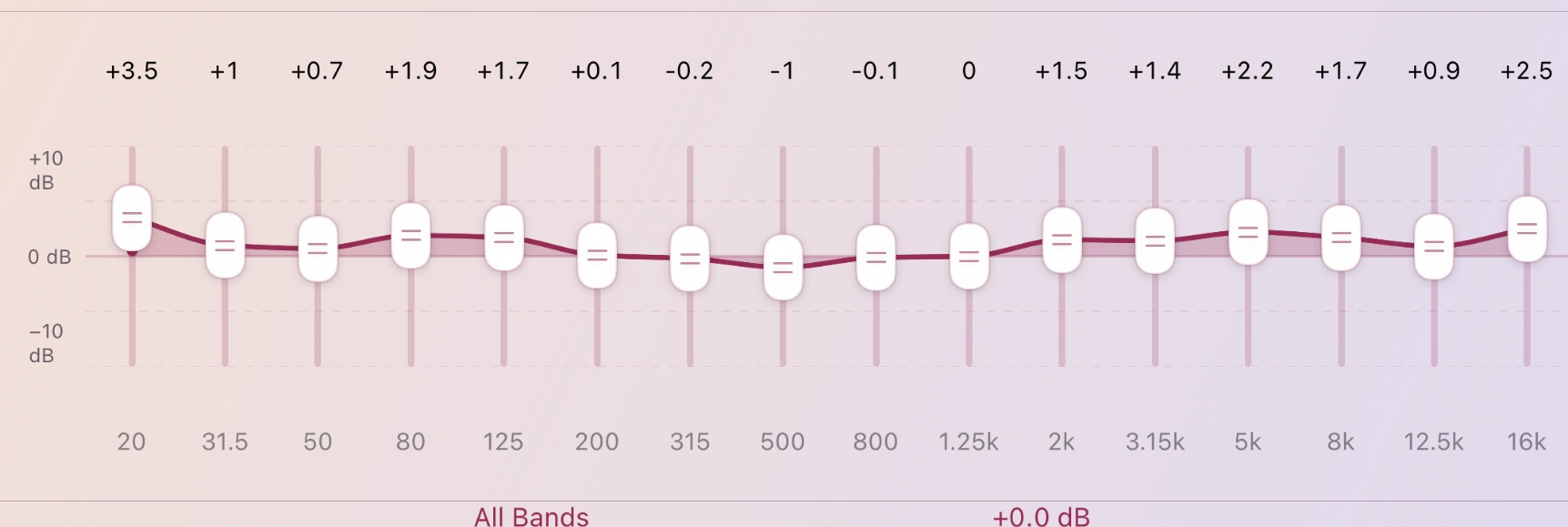
Actual RippleFX 16-band equalizer interface with individual frequency controls
KNOW YOUR OPTIONS

TIDAL playback quality and EQ are different things

TIDAL emphasizes available streaming quality and playback destinations. The sound controls accessible on iPhone depend on the chosen playback route. A manual equalizer is a separate tool for adjusting frequency response.

INSIDE TIDAL

TIDAL's sound options

  • Check the available playback-quality setting in TIDAL and whether it fits your network and device.
  • Use local audio-output selection if RippleFX appears; TIDAL Connect or external-device playback is a distinct path.
  • An EQ can reshape tonal balance, but does not inherently raise the bit depth or sample rate of a source.
WITH RIPPLEFX

Fine-tuning beyond streaming quality

For compatible playback routed to RippleFX, its 8/16-band equalizer can make careful tonal adjustments, AutoEQ can apply supported headphone corrections, and bass profiles add personal taste.

  • Choose a bass profile and fine-tune intensity.
  • Adjust an 8- or 16-band equalizer; save EQ presets.
  • Use supported headphone AutoEQ, Spatial Surround, Reverb and Pitch settings.
AUDIO ROUTING

How to try RippleFX with TIDAL on iPhone

Test your output route before making assumptions about sound quality or feature availability.

  1. 01

    Start music in TIDAL

    Open TIDAL on your iPhone or iPad and play a track using a supported playback method.

  2. 02

    Select RippleFX as your audio output

    Open Control Center, tap the AirPlay or audio-output picker, and choose RippleFX if it appears as an available destination.

  3. 03

    Switch on your preferred effects

    Return to RippleFX, enable the main RippleFX On switch and adjust Bass Boost, graphic EQ or other effects to taste.

Compatibility note: TIDAL Connect and external streamer playback should not be assumed to pass through RippleFX. Processing may change the signal path and can affect bit-perfect, lossless or high-resolution output; this page does not promise any of those are preserved. If RippleFX is not available in the audio-output picker, do not assume that the particular playback route is compatible. Read the full routing setup guide.
TUNE YOUR LISTENING

More control, shaped for your listening.

Experiment with these audio tools when the chosen output route supports RippleFX. Start with modest changes and adjust by ear.

Detailed EQ

Shape frequencies precisely

Make small, deliberate changes to bass, midrange and treble using the 16-band equalizer.

AutoEQ

Start with a headphone profile

Apply correction for supported headphone models and compare with the original sound.

Spatial Surround

Experiment with a wider stage

Try spatial modes with appropriate recordings and lower intensity before increasing it.

COMMON QUESTIONS

Questions, answered.

What to know before you use RippleFX alongside TIDAL.

Other music guides: Apple Music Spotify Amazon Music Deezer

Does TIDAL have a system-wide equalizer for iPhone?

TIDAL sound features and third-party iPhone audio effects depend on the app and output route. RippleFX can only enhance TIDAL playback if that route offers RippleFX as a destination.

Does EQ preserve TIDAL lossless or hi-res quality?

Do not assume it does. Any added audio-processing route may change the original signal and its format. Check your playback chain and device for specific behavior.

Does RippleFX work with TIDAL Connect?

TIDAL Connect usually sends playback to a separate compatible device. That is different from selecting RippleFX as the iPhone’s local output. It is not automatically covered by RippleFX routing.

What EQ settings should I use with TIDAL?

There is no universal best setting. Start flat, adjust a single region at a time and compare against bypass at matched volume.

Is RippleFX free to use?

Every installation begins with seven days of full feature access, with no subscription trial enrollment. Afterward, all effects remain accessible for ten minutes every day at no charge. Unlimited access is available through optional monthly or lifetime purchases.

RippleFX app icon
RIPPLEFX BY SARANGAUDIO

Your music, your sound.

Explore a flexible, precise equalizer for supported listening on iPhone and iPad.

Download on the App Store