Before you start: RippleFX requires iOS 27 or iPadOS 27 or later. Install it on your iPhone or iPad, and have a supported music app ready to play.
Three steps to get started
Play a track
Open Apple Music, Spotify, SoundCloud or another compatible music app. Start playback and keep the track playing while you select the audio destination.
Choose RippleFX as the output
Open Control Center, tap the AirPlay / audio-output control, and choose RippleFX if it appears. This routes compatible playback through RippleFX. If you don't see it, check that RippleFX is installed and your app or audio route supports it.
Switch RippleFX On
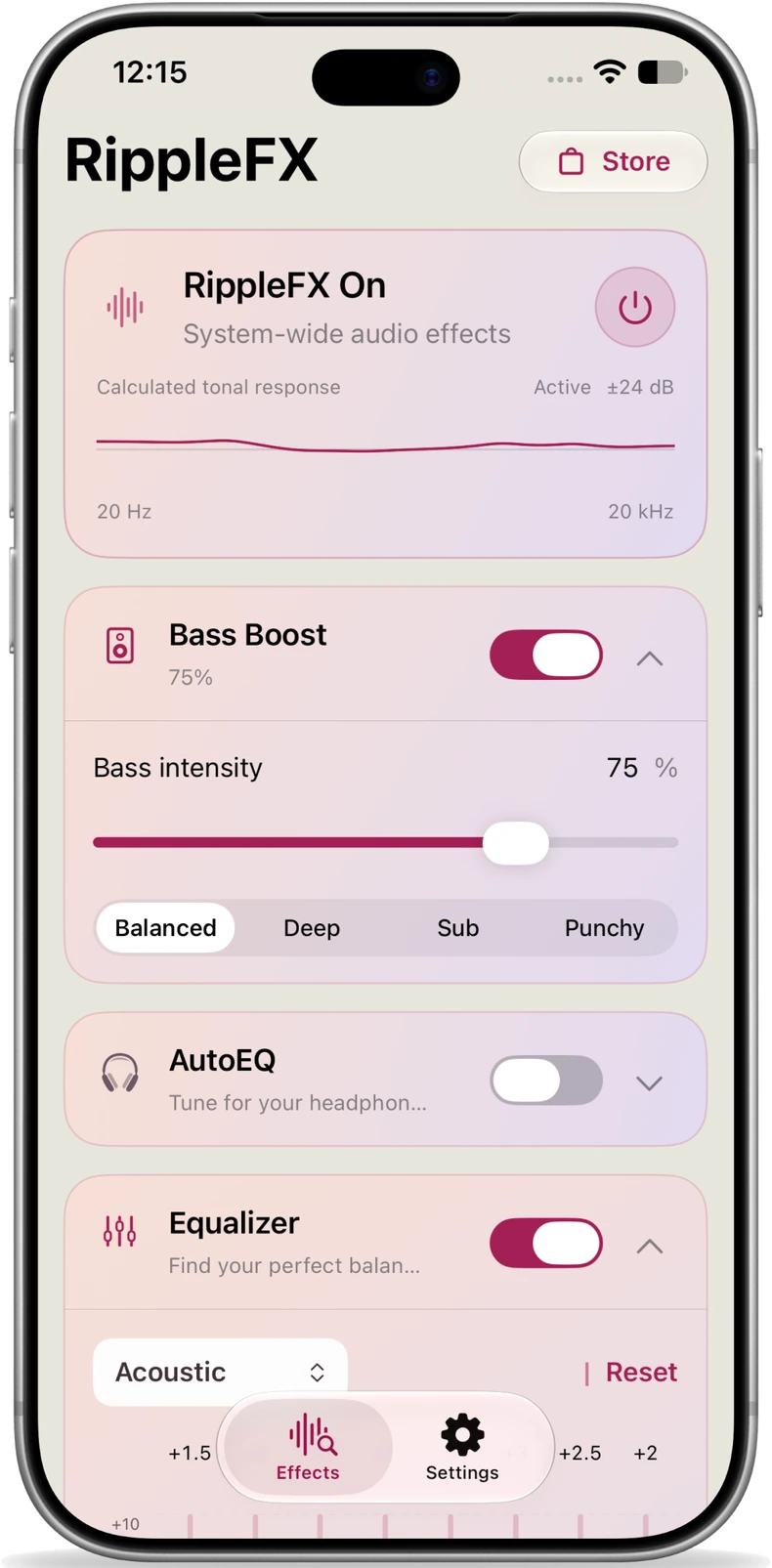
Return to RippleFX and enable the RippleFX On switch. Turn on Bass Boost, Equalizer, AutoEQ or Spatial Surround to shape your sound.
Making the most of your music
Bass booster and graphic EQ
Adjust Bass Boost intensity or choose Deep, Sub, Punchy or Balanced. The 8-band graphic equalizer is useful for quick tuning, while the 16-band EQ offers more detailed frequency adjustments. Use presets as a starting point, then customize them to your headphones and music.
Spotify and Apple Music
With Spotify or Apple Music, the key is selecting RippleFX as an available audio output. Once the playback route is connected, you can use RippleFX's effects while the music continues in your chosen player. The exact output options may vary with app versions, devices and playback sources.
For service-specific instructions, read our Spotify equalizer and bass boost guide or Apple Music custom EQ guide.
Headphones and spatial effects
AutoEQ provides tuning for supported headphone profiles. Spatial Surround, Reverb, Pitch and Preamp let you explore a wider range of sound. Begin with modest volume and gain settings to avoid distortion or uncomfortable listening levels.
When the effects aren't working
- Check that the original music app is currently playing audio.
- Confirm that RippleFX is selected as the output destination, not just installed.
- Check that the RippleFX On switch is enabled and the desired effect has its own switch enabled.
- Try another compatible audio route if the output device does not appear.
- Compatibility may differ between streaming apps, devices, output routes and protected content.
Questions about trial access or purchases?
RippleFX includes seven days of full access automatically. After that, the app continues to offer ten minutes of free usage every day with all supported audio effects. No purchase or subscription starts automatically. A monthly subscription and a one-time lifetime purchase are optional ways to unlock unlimited use.
For help with restoring purchases and other questions, visit RippleFX Support or email ripplefx@sarangaudio.com.

RippleFX is independent of Apple Music, Spotify and other music services mentioned here. Compatibility is subject to the output options each service makes available.